Power Desk · Guided tour
The Sprites page
See every sprite, what it costs in memory and where it appears, and set optional hitboxes. Take a short tour of the screen.
Step 1 of 13
Every sprite, and where it appears
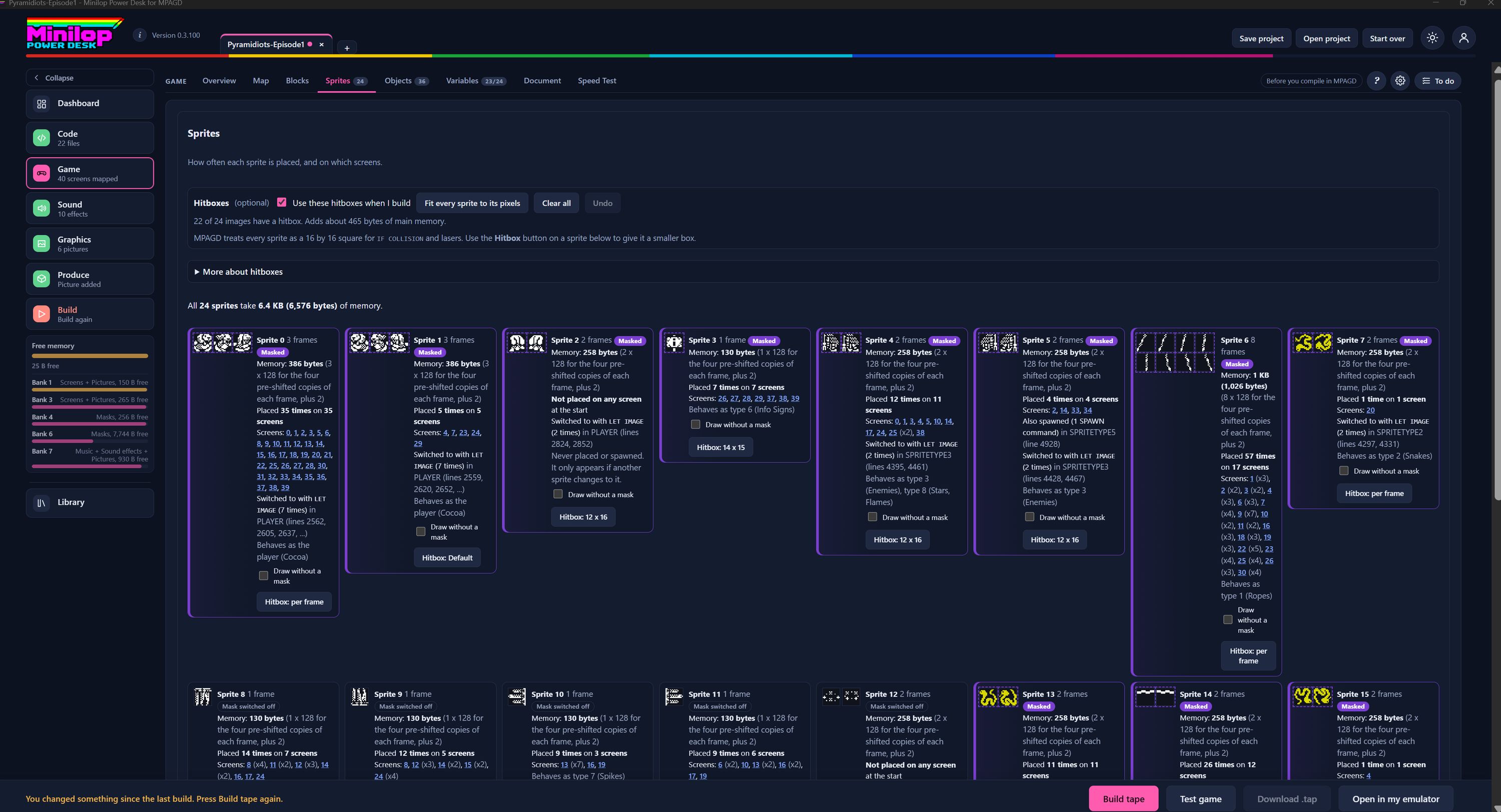
The Sprites page shows how often each sprite is placed, and on which screens. It also tells you how much memory each one costs. Use Next, or the numbers, to walk round the screen.
The Game tabs
Sprites is one of the Game tabs. The number beside it counts your sprite definitions, 24 in this game.
Hitboxes, if you want them
MPAGD treats every sprite as a 16 by 16 square for IF COLLISION and lasers. The optional Hitboxes panel lets you give a sprite a smaller box, and the Desk builds with your hitboxes when the tick box is on.
Fit, clear and undo
Fit every sprite to its pixels sets each hitbox to the sprite's drawn size. Clear all removes them, and Undo takes back your last change. The panel also says how many images have a hitbox and how much memory they add.
More about hitboxes
Open More about hitboxes for a fuller explanation of how they work.
The memory bill
One line adds it all up: all 24 sprites take 6.4 KB (6,576 bytes) of memory. Each card shows its own share.
One card for each sprite
Each card has a picture of the frames, the sprite number, how many frames it has and a Masked tag where it uses a mask. Cards that are not on any screen at the start still appear, so nothing is hidden.
What it costs
Below the name, a line gives the memory in bytes and explains it: the four pre-shifted copies of each frame, plus 2.
Where it is placed
The card says how many times the sprite is placed and on how many screens, then lists those screens as links. It also says where LET IMAGE switches to it, and which type it behaves as, such as the player or Snakes.
Sprites not placed at the start
A sprite that is not placed on any screen says so. Sprite 2 is never placed or spawned, and only appears if another sprite changes to it.
Draw without a mask
Each card has a Draw without a mask tick box, which can save memory on sprites that do not need one.
Set a hitbox for one sprite
The Hitbox button on a card shows its current box, such as 12 x 16, Default or per frame. Press it to give that sprite a smaller box.
Then build the tape
When your sprites are set up, build the tape and test your game in the built-in emulator.
Next tour: Cutscenes All tours