
Power Desk · Guided tour
Cutscenes
Collect the full screen pictures your game shows between scenes, and see what they cost in memory. Take a short tour of the page.
Step 1 of 11
Pictures for your cutscenes
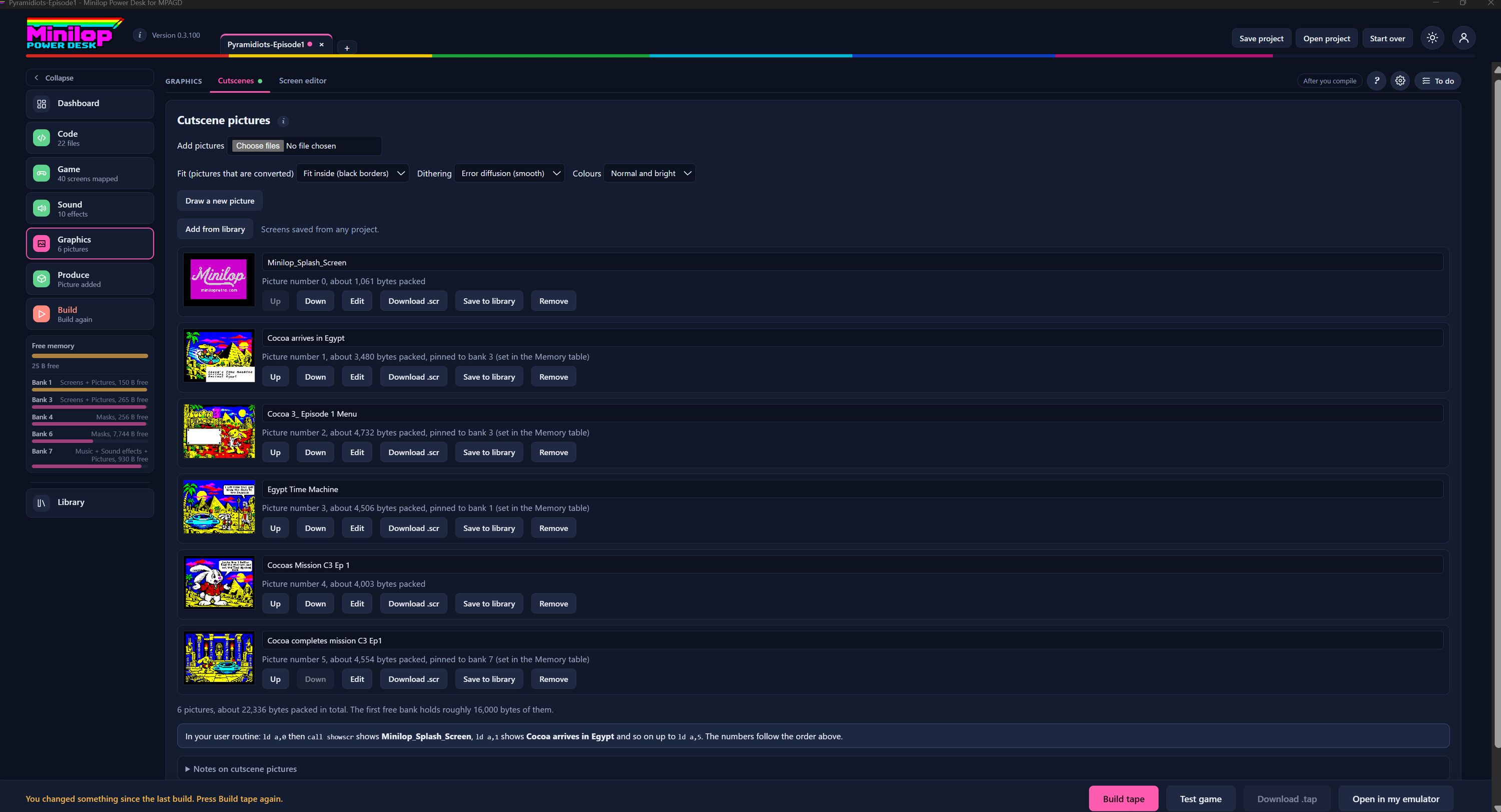
Cutscene pictures are full screen pictures your game can show, such as a story scene or a menu. The Desk packs them for you and tells you how big they are. Use Next, or the numbers, to walk round the screen.
Two tabs in Graphics
Graphics has two tabs: Cutscenes, which lists your pictures, and Screen editor, where you draw them.
Add pictures you already have
Choose files to pick one or more pictures from your computer. They are converted for the Spectrum as they come in.
How pictures are converted
Fit decides what happens when a picture is the wrong shape, for example Fit inside (black borders). Dithering sets how colours are blended, for example Error diffusion (smooth). Colours lets you use Normal and bright or other choices from the list.
Draw or borrow a picture
Draw a new picture opens the Screen Editor. Add from library brings in a screen you saved from any project.
One row for each picture
Each picture has a small preview, a name you can edit, its picture number and about how many bytes it takes once packed. The number matters, because your user routine uses it to pick the picture.
Move, edit, save or remove
Up and Down change the order, which changes the numbers. Edit opens the picture in the Screen Editor. Download .scr saves a copy, Save to library keeps it for other games, and Remove takes it out.
Where the picture lives in memory
Some pictures say pinned to a bank, with the bank number. That is set in the Memory table, so you can spread big pictures across the 128K banks.
How much space they use
A total sits under the list, with the size of the first free bank, so you can see whether another picture will fit.
How to show them in your game
This line shows how to call a picture from your user routine, for example ld a,0 then call showscr, and names each picture against its number. The numbers follow the order above.
Then build the tape
When your pictures are in order, build the tape and test your game in the built-in emulator.