
Power Desk · Guided tour
The loader
Choose a loading screen, check the BASIC loader and set the message the player sees. Take a short tour of the page.
Step 1 of 12
A loading screen and a loader
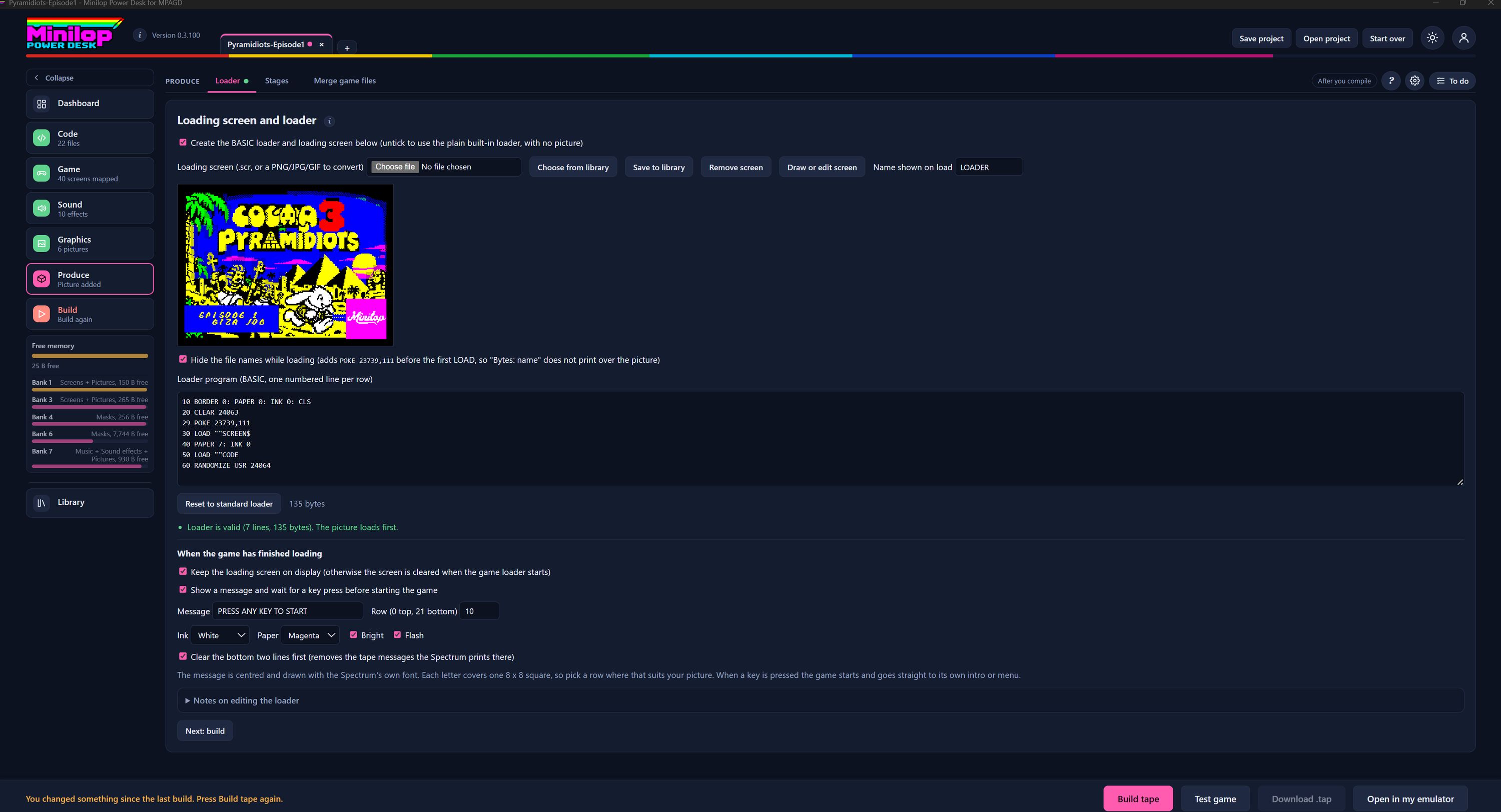
This page sets what the player sees while your game loads from tape, and what happens when it has finished. Use Next, or the numbers, to walk round the screen.
Three tabs in Produce
Produce has Loader, Stages and Merge game files. This tour is about the Loader.
Use the BASIC loader or not
Tick this to create a BASIC loader with a loading screen. Untick it and you get the plain built-in loader, with no picture.
Choose the loading screen
Pick a .scr file, or a PNG, JPG or GIF to convert. Choose from library, Save to library and Remove screen do what they say, and Draw or edit screen opens the Screen Editor. The name shown on load is the tape name, here LOADER.
Your loading screen
A preview of the picture the player will see first.
Hide the file names
This stops the file names printing over your picture while the tape loads. It adds one POKE before the first LOAD.
The loader program
The loader is a short BASIC program, one numbered line per row. You can edit it by hand if you know BASIC, and the Desk checks it as you type.
Reset and check
Reset to standard loader puts the original back. The line below tells you whether the loader is valid, how many lines and bytes it has, and that the picture loads first.
When the game has finished loading
Keep the loading screen on display, or let it be cleared when the game starts. You can also show a message and wait for a key press before the game begins.
Style the message
Type the message, set the row it is printed on (0 at the top, 21 at the bottom), and choose its ink and paper colours. Bright and Flash are tick boxes.
Tidy the bottom of the screen
Clear the bottom two lines first removes the tape messages the Spectrum prints there, so they do not spoil your picture.
Then build the tape
With the loader set up, build the tape and watch it load in the built-in emulator.
Next tour: Merge game files All tours