
Power Desk · Guided tour
Build
Turn your game into a tape, see what went into it and check the memory. Take a short tour of the page.
Step 1 of 10
Turn your game into a tape
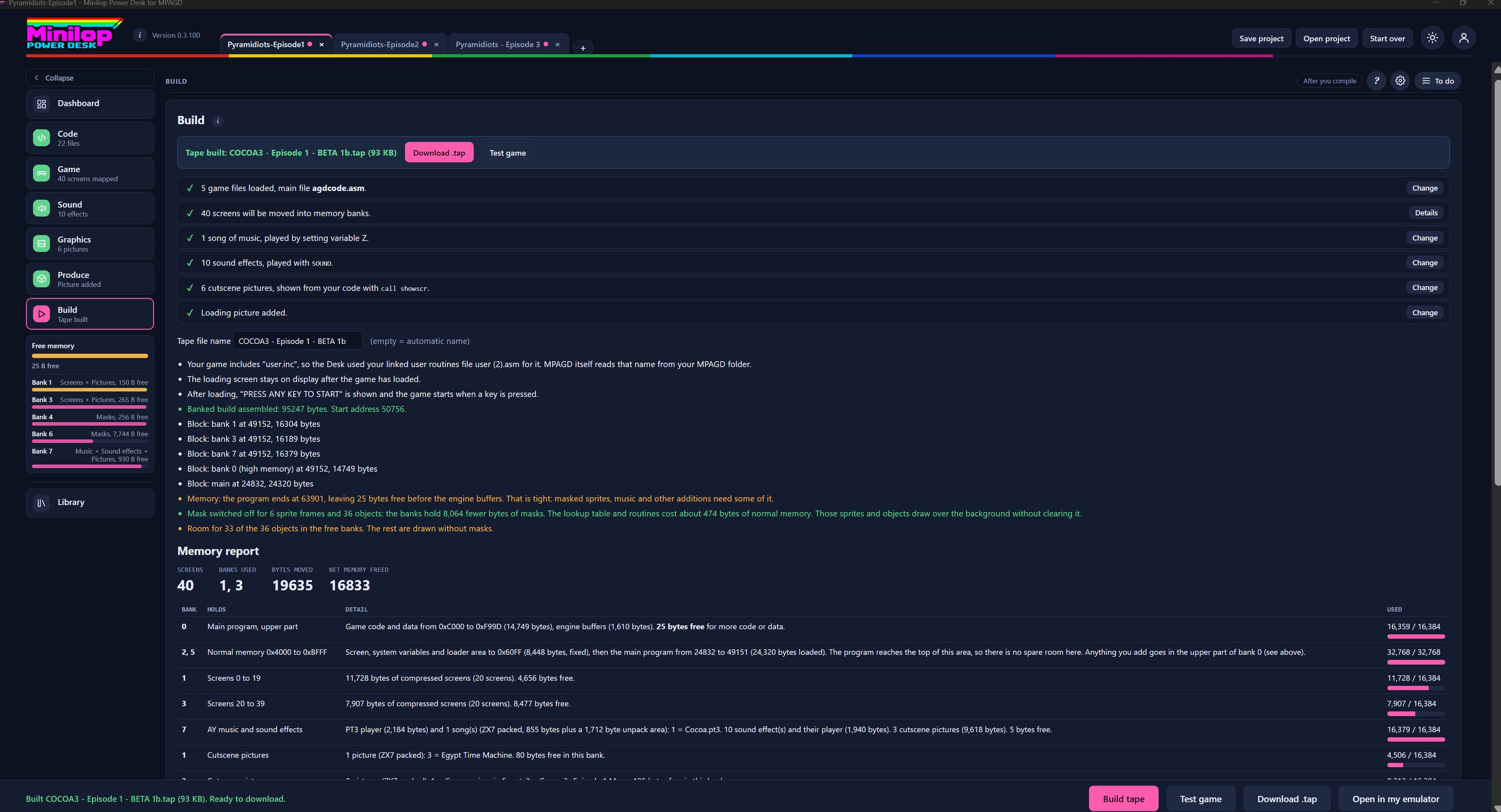
The Build page puts your game together and tells you what it did. Use Next, or the numbers, to walk round the screen.
Pick the page
Build sits in the side list with a short note under it, such as Tape built. Everything else you need is on this page.
The result
Once a build finishes, this bar names the tape and its size. Download .tap saves it and Test game runs it in the built-in emulator.
What went into the game
A tick list says what was found: your game files, how many screens move into memory banks, your songs, sound effects, cutscene pictures and loading picture. Change or Details on the right takes you to the place to adjust each one.
Name your tape
Type a Tape file name, or leave it empty and the Desk picks a name for you.
The build log
These lines say what happened, such as which user routines file was used, how the loading screen behaves and how big each memory block is. Green lines are good news. Orange lines are warnings, for example when memory is tight.
The memory report
Screens, banks used, bytes moved and net memory freed are summed up at the top of the Memory report.
Where everything lives
A table shows each bank, what it holds and how full it is, with a bar on the right. You can see where your screens, music, sound effects and pictures ended up.
Free memory in the side list
The Free memory gauge in the side list shows the bytes free in main memory and in each 128K bank. Check it after a build to see how tight things are.
Then build the tape
Build tape builds again. Test game runs the tape in the built-in emulator, Download .tap saves it and Open in my emulator opens it in your own.