
Power Desk · Guided tour
Variables
See how every variable is read and set, and where. Take a short tour of the page.
Step 1 of 12
See every variable at a glance
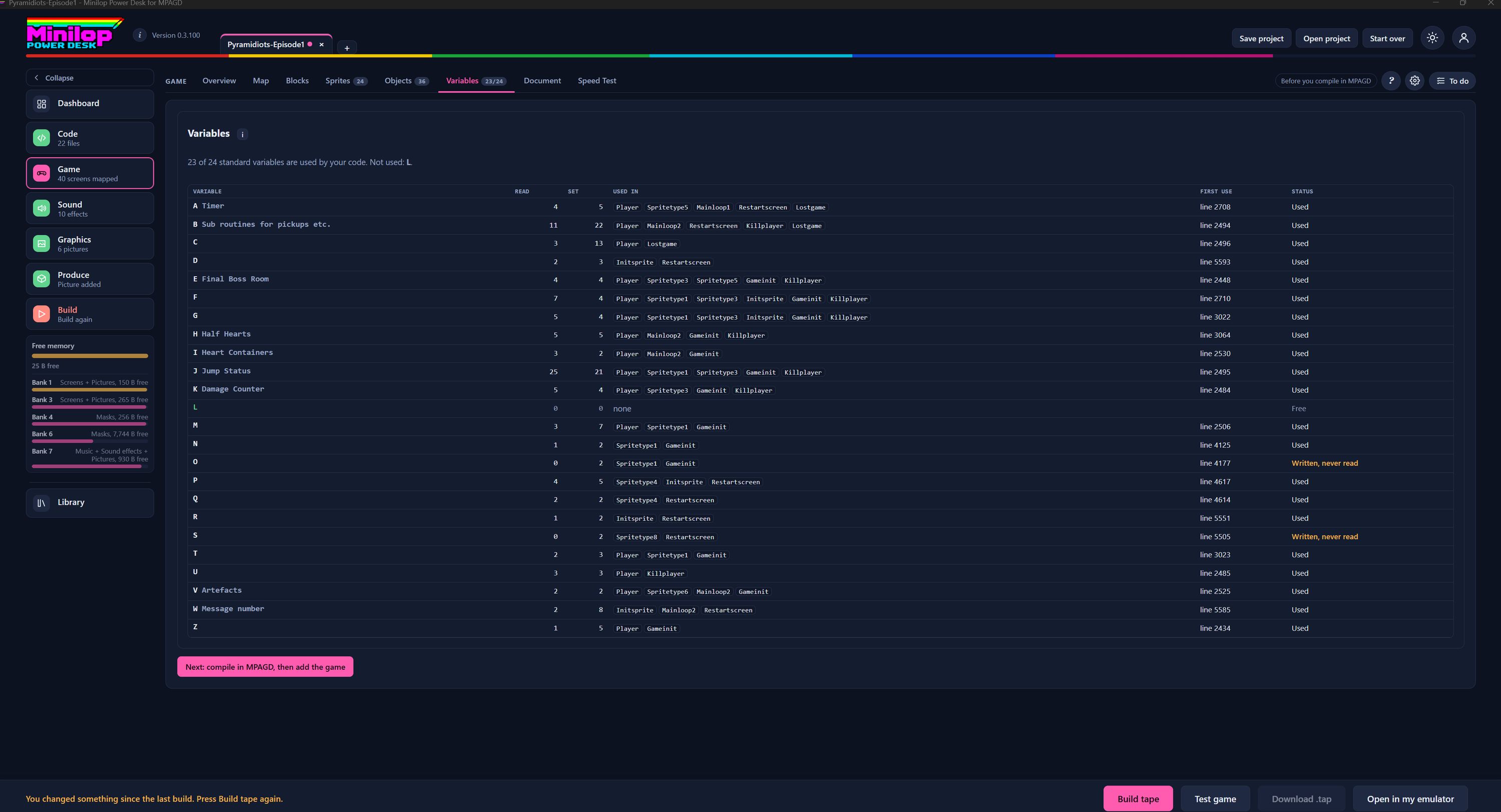
The Variables page shows how your game uses each of the standard MPAGD variables, A to Z. Use Next, or the numbers, to walk round the screen.
Where it sits
Variables is one of the Game tabs, beside Overview, Map, Blocks, Sprites, Objects, Document and Speed Test. The badge shows how many variables your code uses.
How many are in use
This line tells you how many of the 24 standard variables your code uses and which are not used. Here it is 23 of 24, and L is free.
Name and label
Each row starts with the variable letter, followed by the label you gave it on the Labels tab, such as Timer or Jump Status.
Read and Set
Read counts how often your scripts look at the variable and Set counts how often they change it.
Used in
The events that use the variable are shown as small tags, such as Player, Spritetype1 and Killplayer. You can see at once which scripts to look in.
First use
First use gives the line number where the variable first appears, which helps you find it in the code.
Status
Status says Used, Free, or Written, never read in orange. A variable that is only ever set is a sign that something may be unfinished.
A free variable
Variable L is not used anywhere, so it is marked Free. It is ready if you need another variable.
Written, never read
O and S are written but never read, so their status is shown in orange. Check whether the scripts that set them still need to.
The next step
The pink button at the bottom says Next: compile in MPAGD, then add the game. It reminds you what comes next in your workflow.
Then build the tape
When your variables look right, build the tape and test your game in the built-in emulator without leaving the Desk.
Next tour: Speed Test All tours