
Power Desk · Guided tour
The Speed Test
Find the screens and events that slow your game down. Take a short tour of the page.
Step 1 of 12
Find out where your game slows down
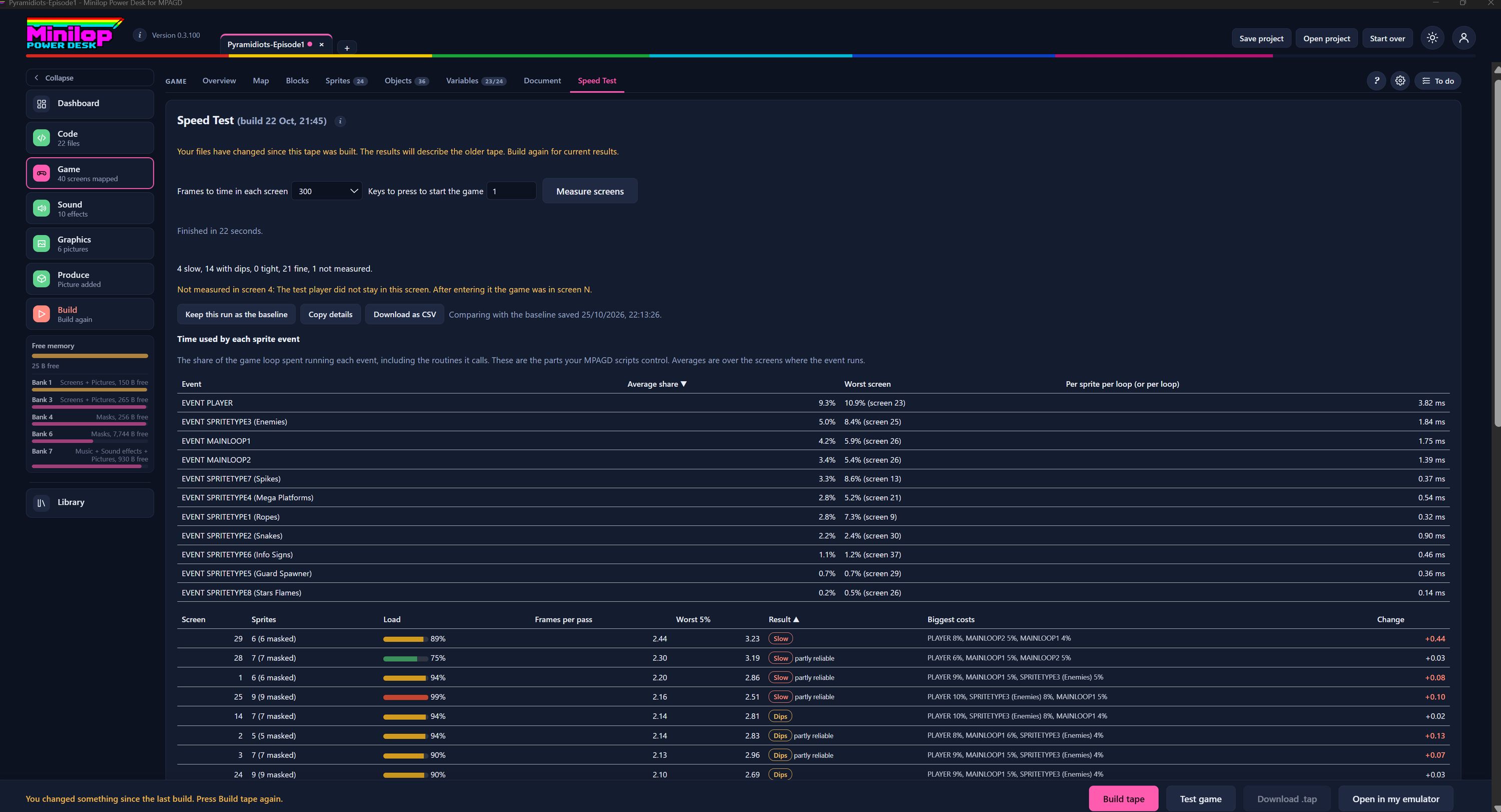
The Speed Test runs your game in the Desk and measures how much time each screen and each event takes. Use Next, or the numbers, to walk round the screen.
Where it sits
Speed Test is the last of the Game tabs, after Overview, Map, Blocks, Sprites, Objects, Variables and Document.
A warning when things have changed
If you have changed your files since the tape was built, the Desk says so, and the results describe the older tape. Build again to get current results.
Choose how long to measure
Frames to time in each screen sets how long each screen is measured for. Keys to press to start the game is for games that need a key press to begin.
Measure screens
Press Measure screens to start. When it ends it tells you how long it took, here 22 seconds.
The summary
A count of how your screens fared: slow, with dips, tight, fine, or not measured. A note explains any screen that could not be measured and why.
Keep it, copy it, compare it
Keep this run as the baseline saves the results to compare with later. Copy details and Download as CSV take them out of the Desk. The note beside them says which baseline you are comparing with.
Time used by each sprite event
This table shows the share of the game loop spent running each event, including the routines it calls. These are the parts your MPAGD scripts control.
Average share, worst screen
Each event shows its average share, the worst screen and the time per sprite per loop in milliseconds. This table is sorted by average share, biggest first.
Screen by screen
Every screen is listed with its number of sprites, a load bar and the frames per pass. The Result column says Slow or Dips, with a note "partly reliable" where the measurement was less certain.
Biggest costs and change
Biggest costs lists what takes most time on that screen. Change shows how it compares with your baseline, so you can see if a recent edit made it better or worse.
Then build the tape
Fix what is slow, then build the tape and run the test again to see the difference.