
Power Desk · Guided tour
The Sound FX builder
Draw your own sound effects frame by frame. Take a short tour of the screen.
Step 1 of 11
The Sound FX builder
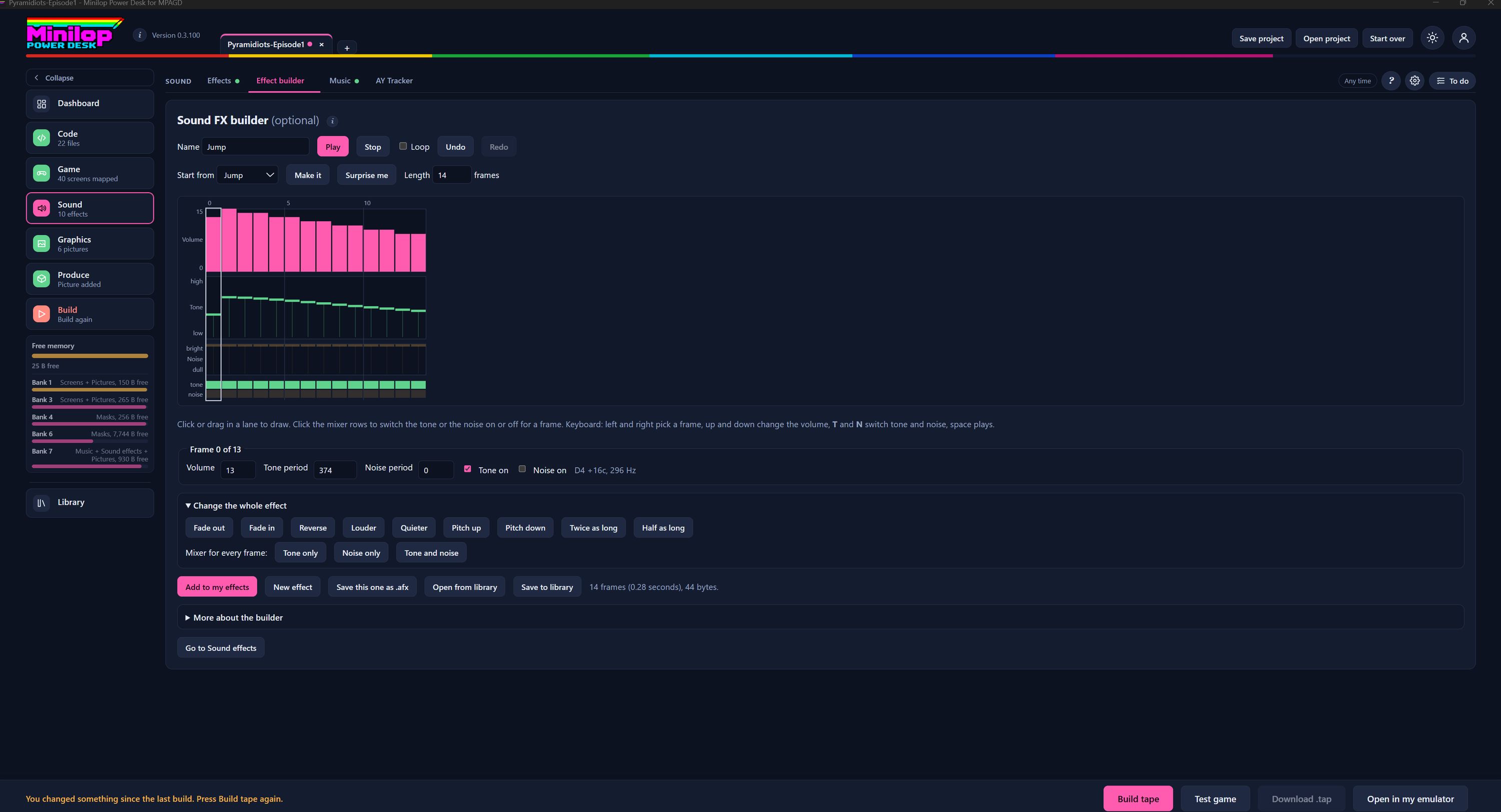
Make your own sound effects here, one frame at a time. It is optional, and the finished effect can go straight into your game. Use Next, or the numbers, to walk round the screen.
Find it in Sound
Effect builder is the second tab in Sound, between Effects and Music.
Name, play and undo
Give the effect a name. Play and Stop let you hear it, and Loop repeats it. Undo and Redo step back and forward through your changes.
Start from something
Start from lists effects to begin with. Make it builds one, Surprise me makes a random one to play with, and Length sets how many frames long it is.
The frame lanes
Each column is one frame. The lanes show Volume, Tone pitch and Noise, and the two rows at the bottom switch the tone and noise on or off. Click or drag in a lane to draw.
Keyboard shortcuts
Left and right pick a frame, and up and down change the volume. T and N switch tone and noise, and the space bar plays.
Fine control of one frame
The chosen frame has a Volume, a Tone period and a Noise period, with tick boxes for Tone on and Noise on. The note and pitch it makes are shown beside them.
Change the whole effect
One press can Fade out, Fade in, Reverse, make it Louder or Quieter, move the Pitch up or down, or make it Twice as long or Half as long. The mixer buttons set Tone only, Noise only or Tone and noise for every frame.
Save your effect
Add to my effects puts it in your game's list. New effect starts again, and Save this one as .afx makes a file. Open from library and Save to library use your library. The size is shown beside them, for example 14 frames and 44 bytes.
On to Sound effects
Go to Sound effects takes you back to your list, where the new effect gets its SOUND number.
Then build the tape
With your effect added, build the tape and hear it in the built-in emulator.
Next tour: Script editor All tours