
Power Desk · Guided tour
Sound effects
Collect your sound effects, put them in order and see how to play them. Take a short tour of the page.
Step 1 of 11
The Sound effects page
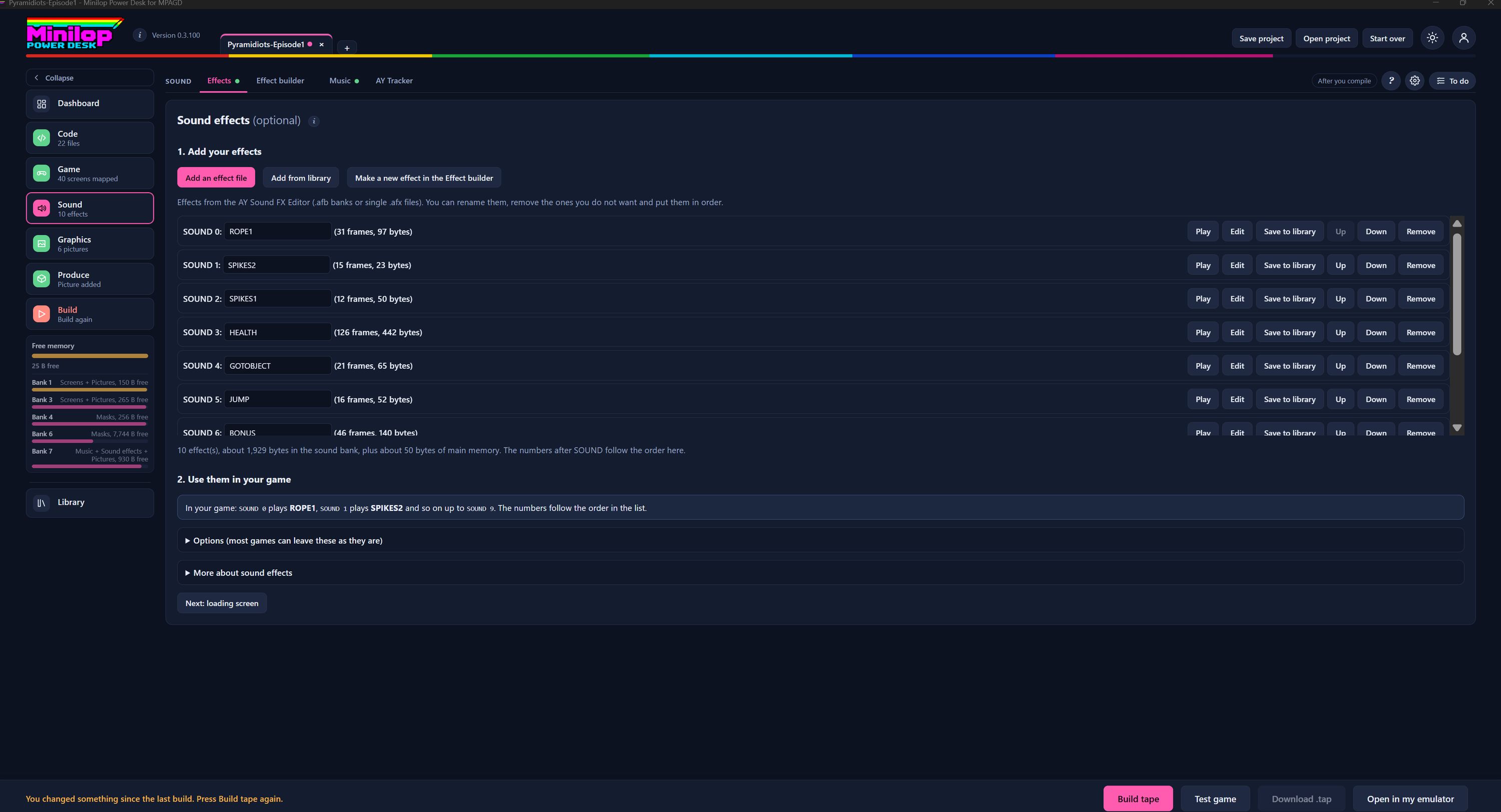
Sound effects are optional. Here you collect the effects for your game, put them in order and see how to play them from your scripts. Use Next, or the numbers, to walk round the screen.
Find it in Sound
Effects is the first tab in Sound, beside Effect builder, Music and AY Tracker. The green dot shows that effects have been added.
Add your effects
Add an effect file loads .afb banks or single .afx files from the AY Sound FX Editor. Add from library picks effects you saved before. Make a new effect in the Effect builder opens the builder.
Your list of effects
Each effect has a SOUND number, a name you can change and its size in frames and bytes. The list scrolls when there are more effects than fit on the screen.
Play, edit and tidy
Play lets you hear an effect. Edit opens it in the Effect builder. Save to library keeps a copy, Up and Down change the order, and Remove takes it out.
What it costs in memory
This line adds up your effects, for example 10 effects at about 1,929 bytes in the sound bank, plus about 50 bytes of main memory. The numbers after SOUND follow the order of the list.
Use them in your game
SOUND 0 plays the first effect, SOUND 1 plays the second and so on. The numbers follow the order in the list, so change the order and you change which effect each number plays.
Options and more help
Options holds settings that most games can leave as they are. More about sound effects has extra notes.
Keep an eye on memory
The Free memory gauge shows the bytes left in main memory and in each 128K bank. Music and sound effects share Bank 7.
Carry on to the loading screen
Next: loading screen takes you to the following page.
Then build the tape
With your effects in, build the tape and test them in the built-in emulator.
Next tour: Sound FX builder All tours