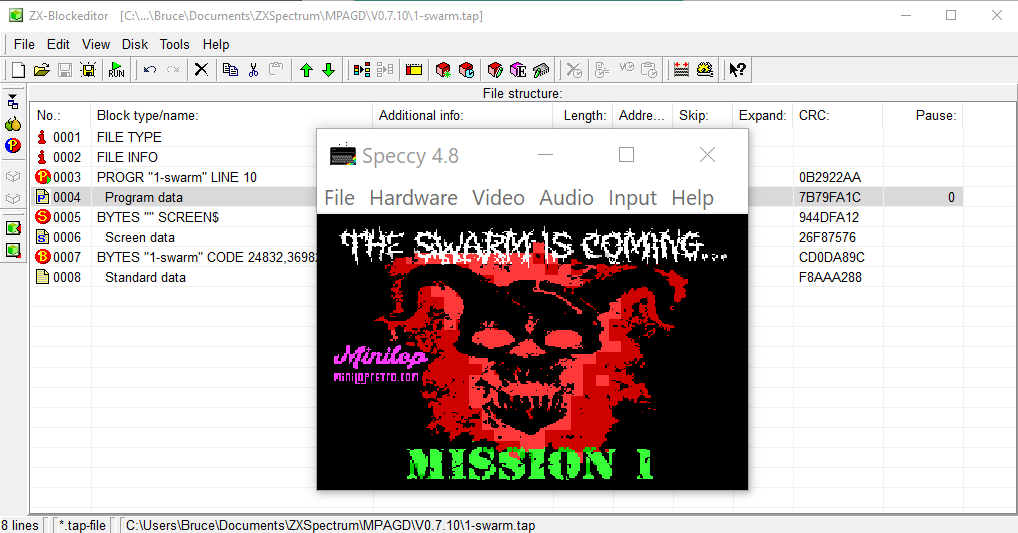
A few people have asked for help with adding a loading screen to their MPAGD ZX Spectrum Games, now, my go to tool for this is MPAGD Musicizer by the most excellent human that is David Saphier. But, that assumes you also want to add music and make it a 128K game. If you are just targeting a 48K game there's a little more work.
I'm not going to cover the creation of an actual loading screen (I use ZX Paintbrush to save a .scr file) - so I'll assume you've already done that.
First off, you'll need to get yourself copies of:
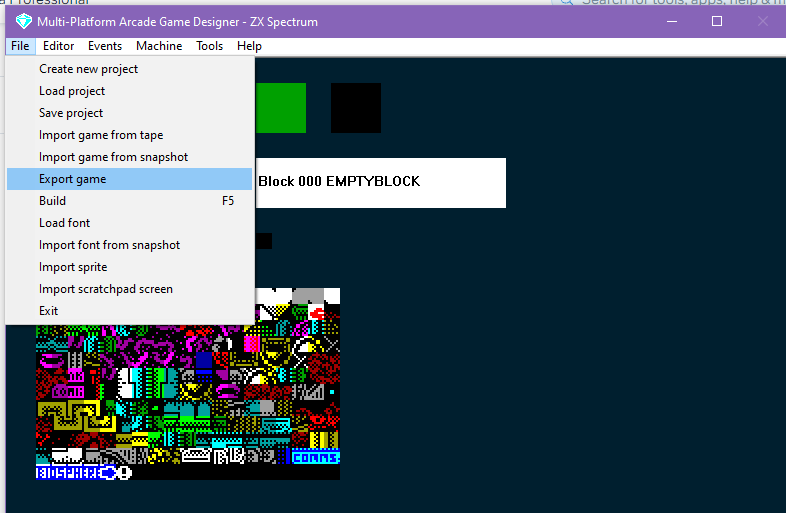
Export your game from MPAGD:
From the File Menu > Export
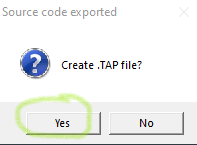
Create a TAP file
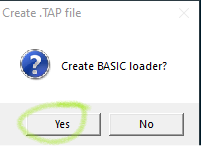
Create a BASIC loader
2. Open up ZX BlockEditor
Open up the TAP file you created in step 1
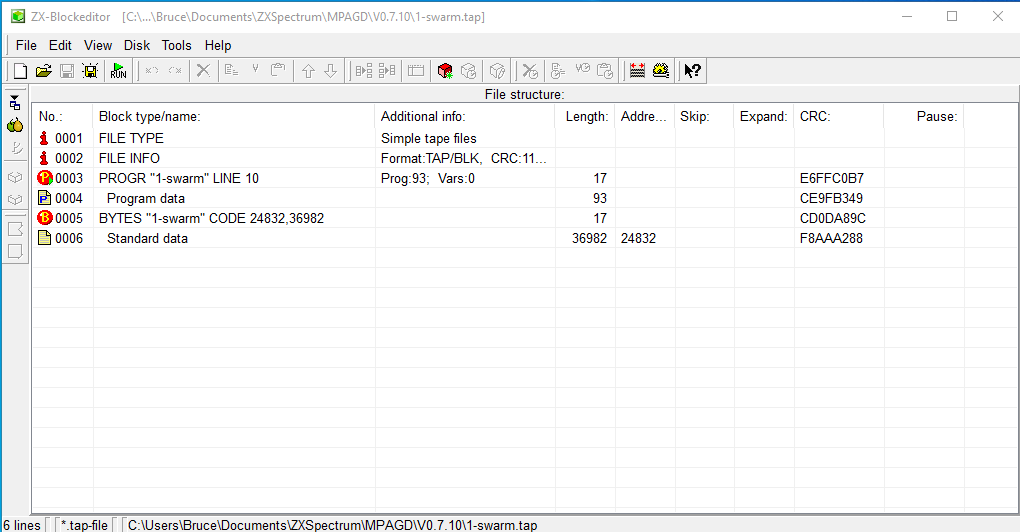
Click the Red Cube icon to Add/inster a new datablock
Click the TAP tab
in the Select Block: drop down, select Screen Header
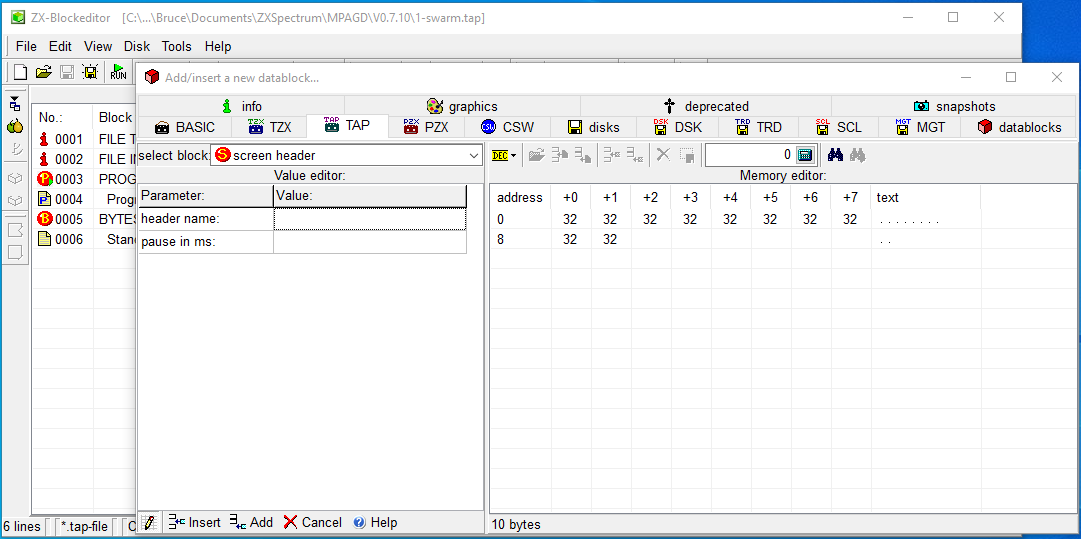
Click the Insert Button at the bottom of the window
This has now added a screen header to your TAP file.
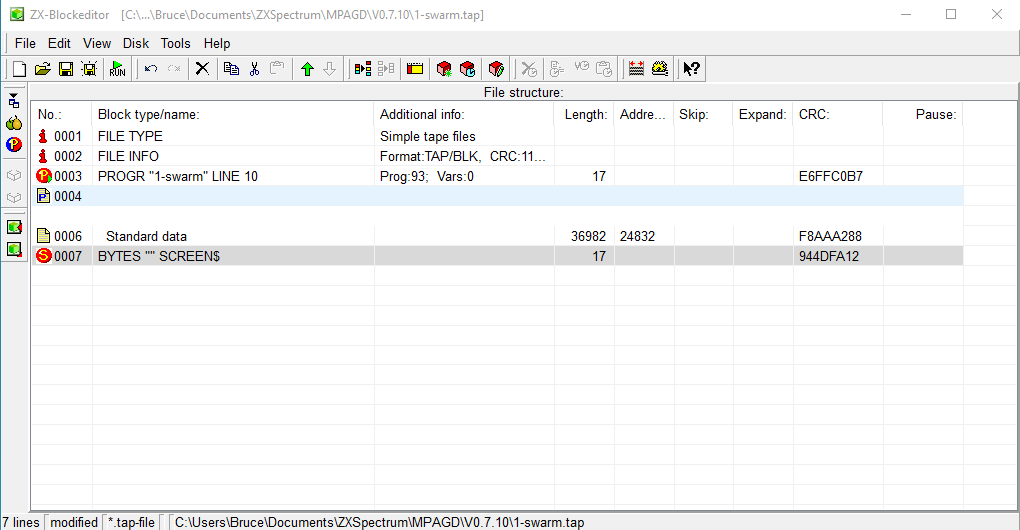
Next, we need to add your loading screen file (.scr)
From the Tools menu select 'Insert File'
Then navigate to your screen file - you'll then see this: untick the FILE TYPE & FILE INFO
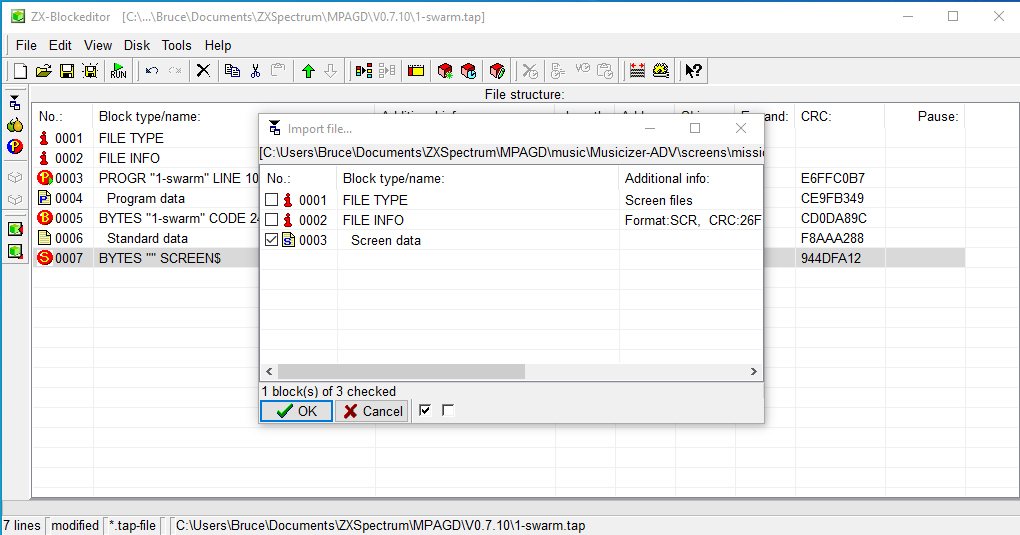
Click OK
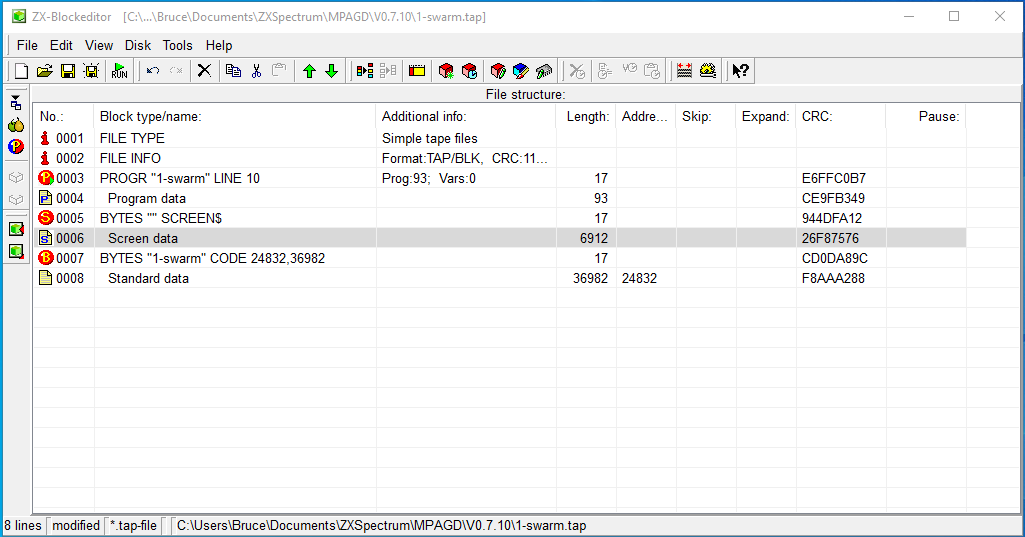
Now you'll have the screen header and screen file, but they may be in the wrong place...we need to move them up so that:
Screen Header is directly Beneath the Program Data
And Screen Data is directly Beneath the Screen Header.
Select one and use the GREEN UP arrow to move it up, it should end up looking like:
next we need to edit the BASIC program.
Click the row with the Program Data to highlight it
Right click and select Edit datablock with ZX Editor:
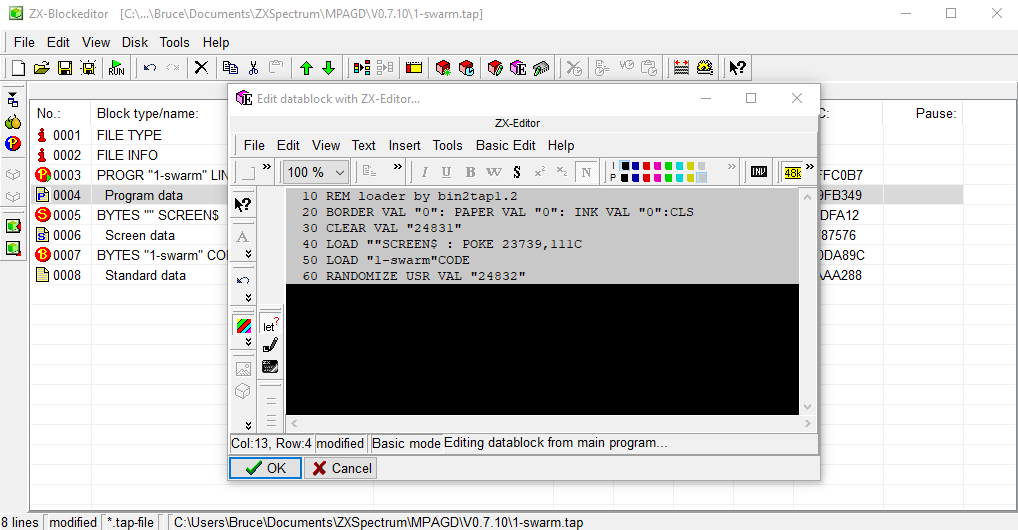
Edit your basic program as follows:
In Line 20 Change the INK VAL to 0, add a : CLS after it
Position your cursor at the end of Line 30 and hit enter
Add a new line 40:
LOAD""SCREEN$ : POKE 23739,111
The POKE will prevent any info overwriting your beautiful loading screen when loading)
Click OK
Then Click RUN (click yes to anything it asks you to confirm)
...and you are done:)