
We've just seen how MPAGD defaults to a square play area with game scores an other info down the right hand side.
But this doesn't suit our game so let's change it. The Window Size editor lets us increase and decrease the play area and move or remove any of the optional information like the scores. Here's how it looks with our current game setup:
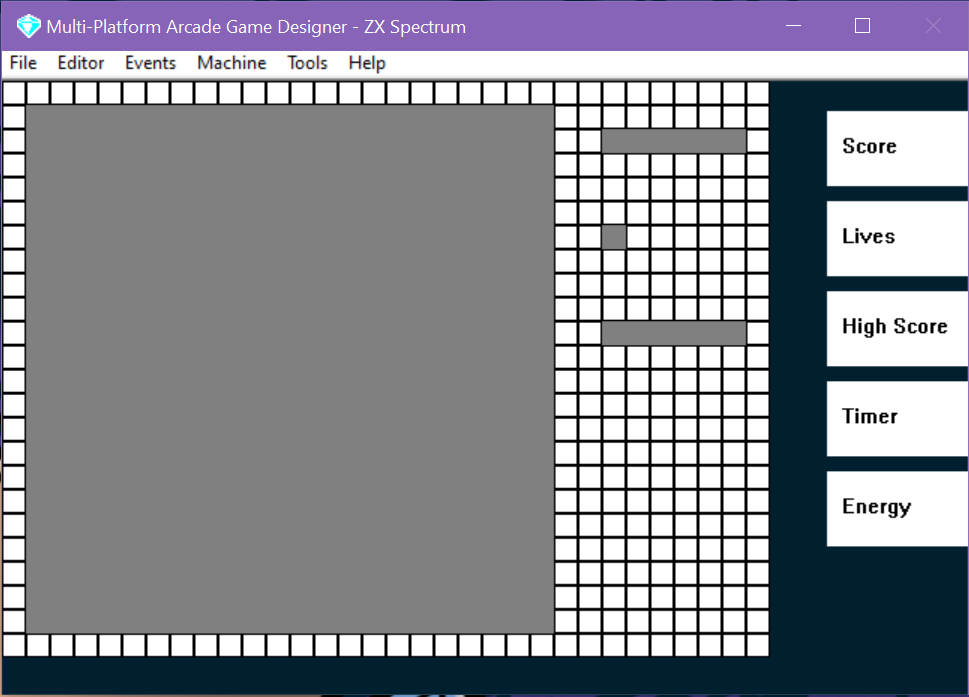
The big grey square is our current play area, the top right grey rectangle is where the score is displayed, benath it the lives, and beneath that the High Score.
On the right hand side the buttons represent the available information that MPAGD can display (you can add your own later) If you click the Score button you'll notice that the score is removed:
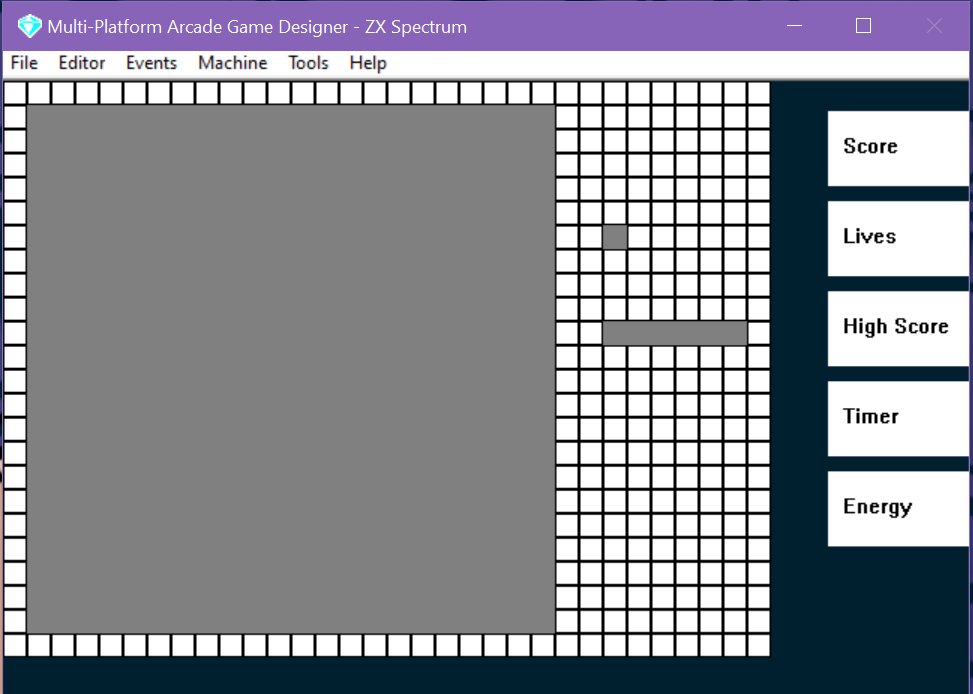
Click the Score button again and it reappears, now click the scores rectangle - it will turn red to show us that we have selected it:
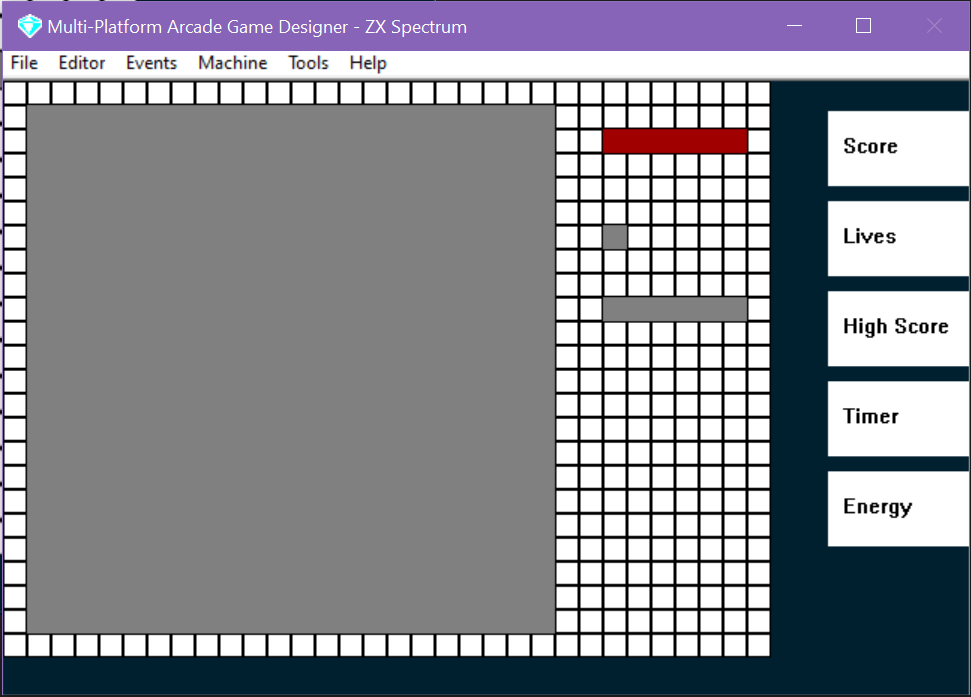
Now click one of the squares in the top row and the score will be positioned there:
Let's move the score to theme top left corner of the screen.
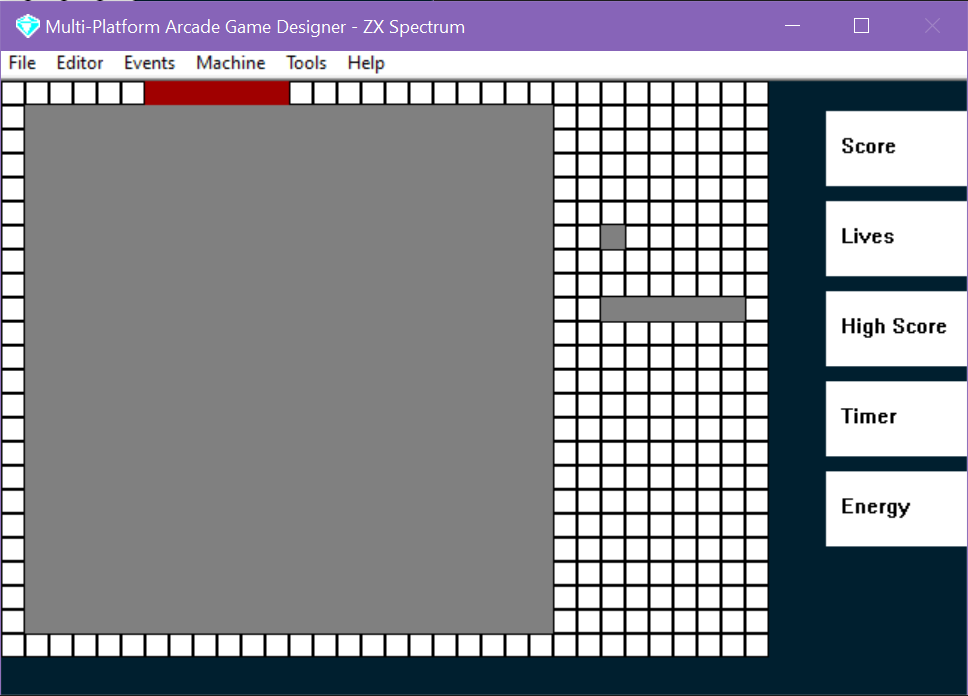
I've left enough space to the left so that I can add the word 'SCORE' later
Next, follow the same routine for moving the Lives and the High Score to the top row...when you are done, it should look like this:
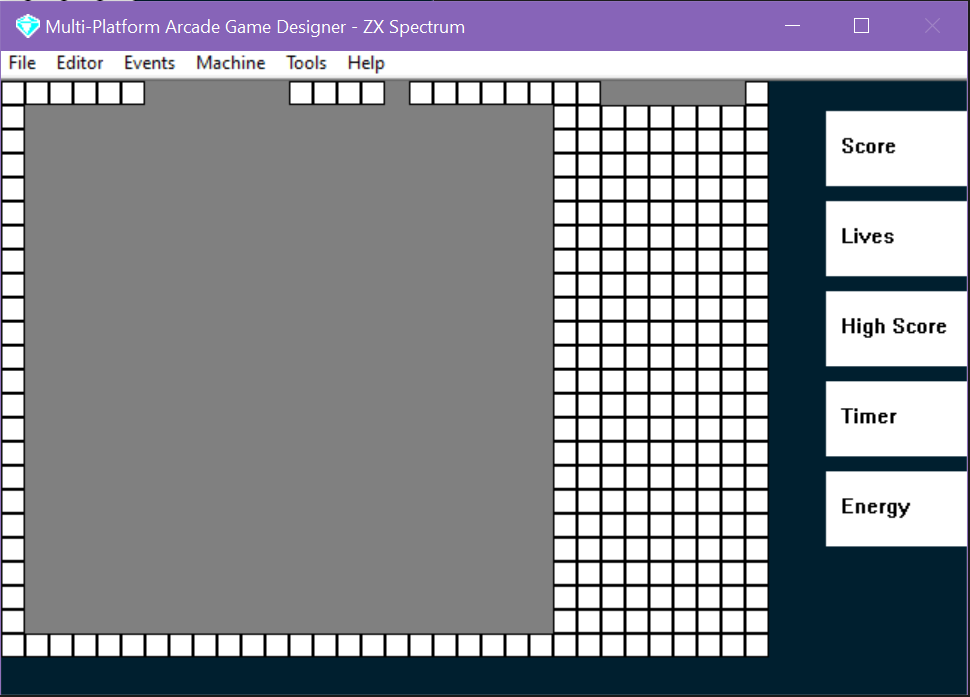
Next we'll increase the size of the play area to fill the rest of the screen. To do this, first click the big grey play area square, it should turn red:
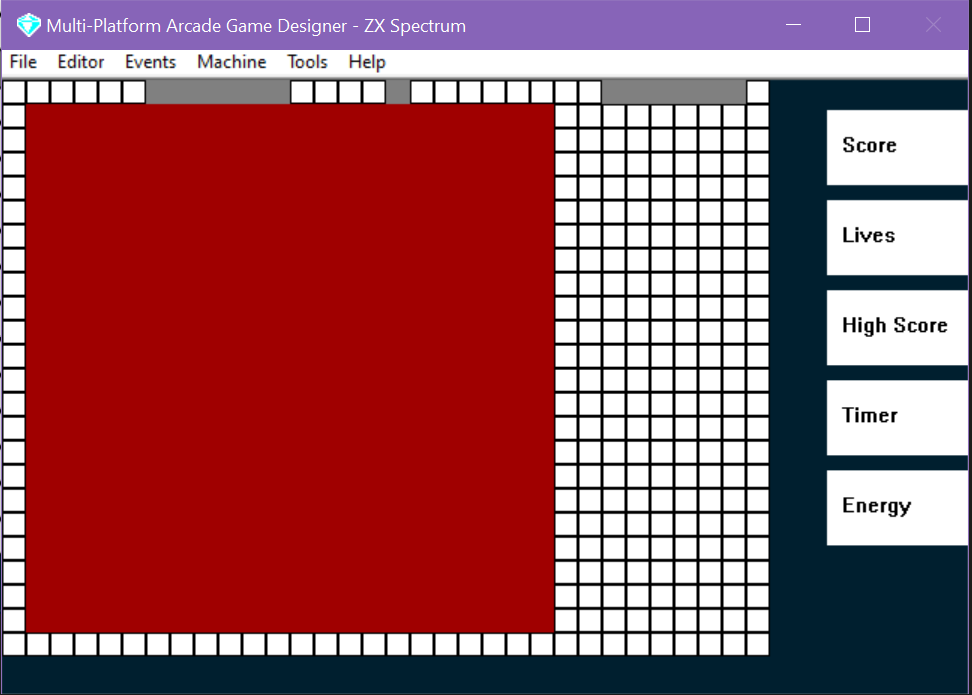
To increase the play area size we can click the top left square where we want it to start:
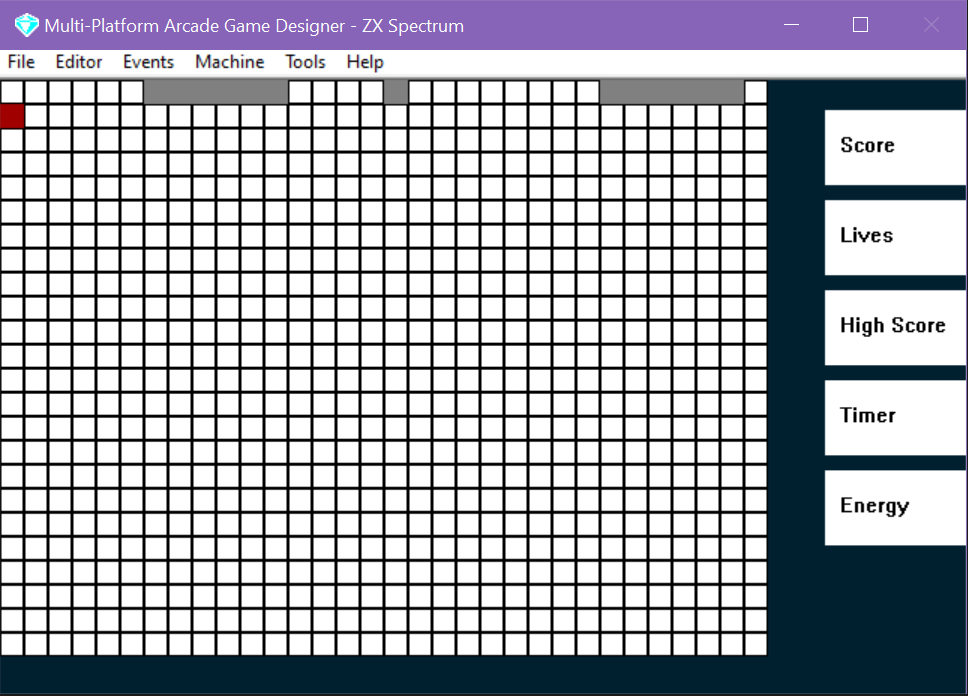
..and then click the bottom right square where you want the area to end..
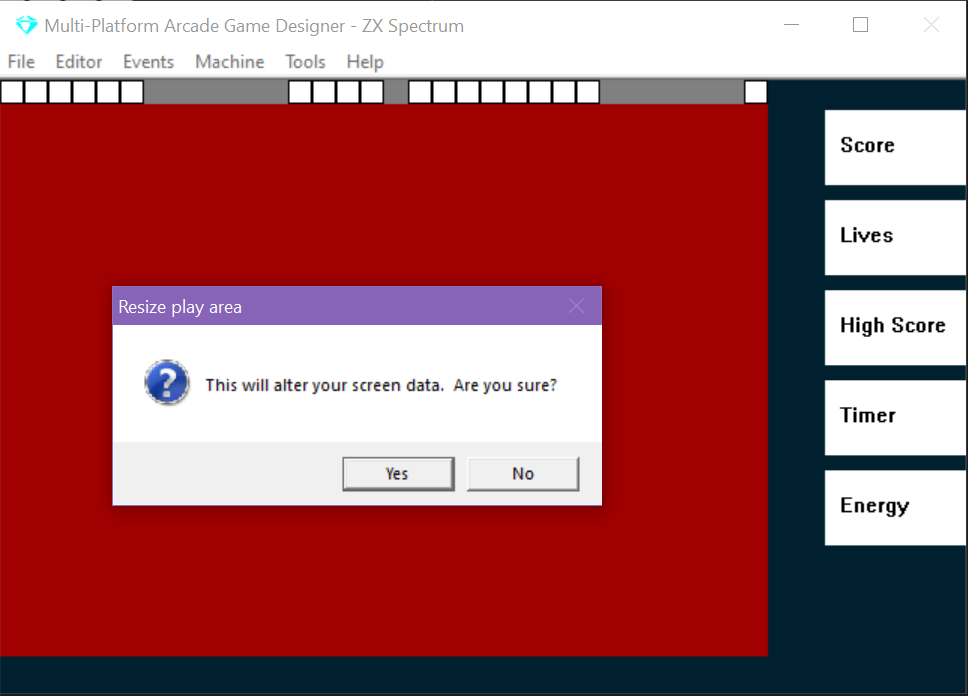
Once you confirm, your screen size and information positions will be saved:
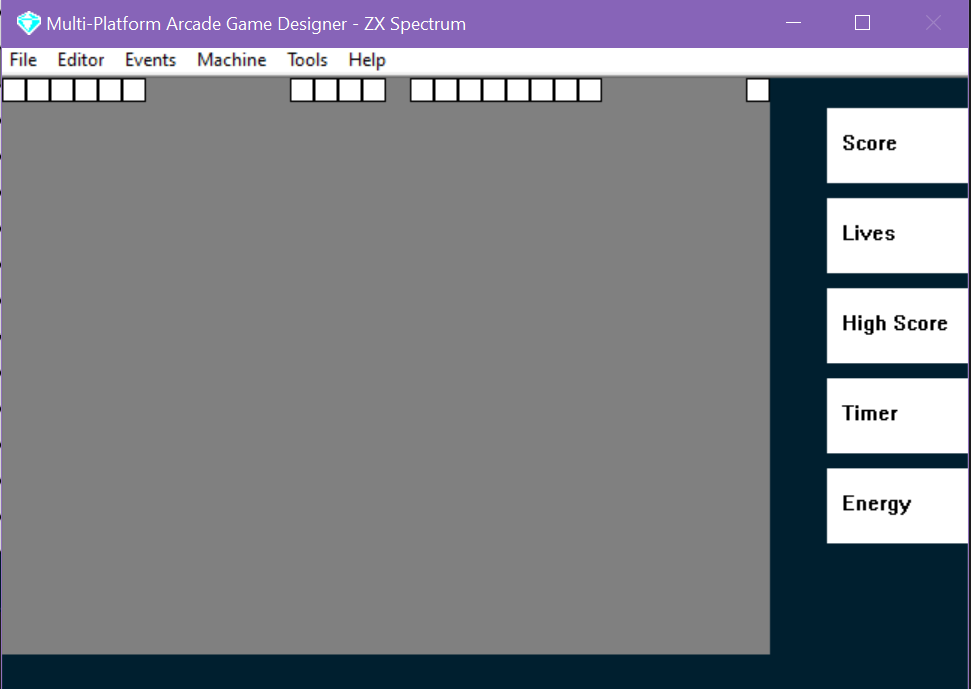
This has now altered our screen size, but it wont automatically update the screens of your games, go back to the screen editor - you will now see there is a lot more empty space for us to take advantage of:
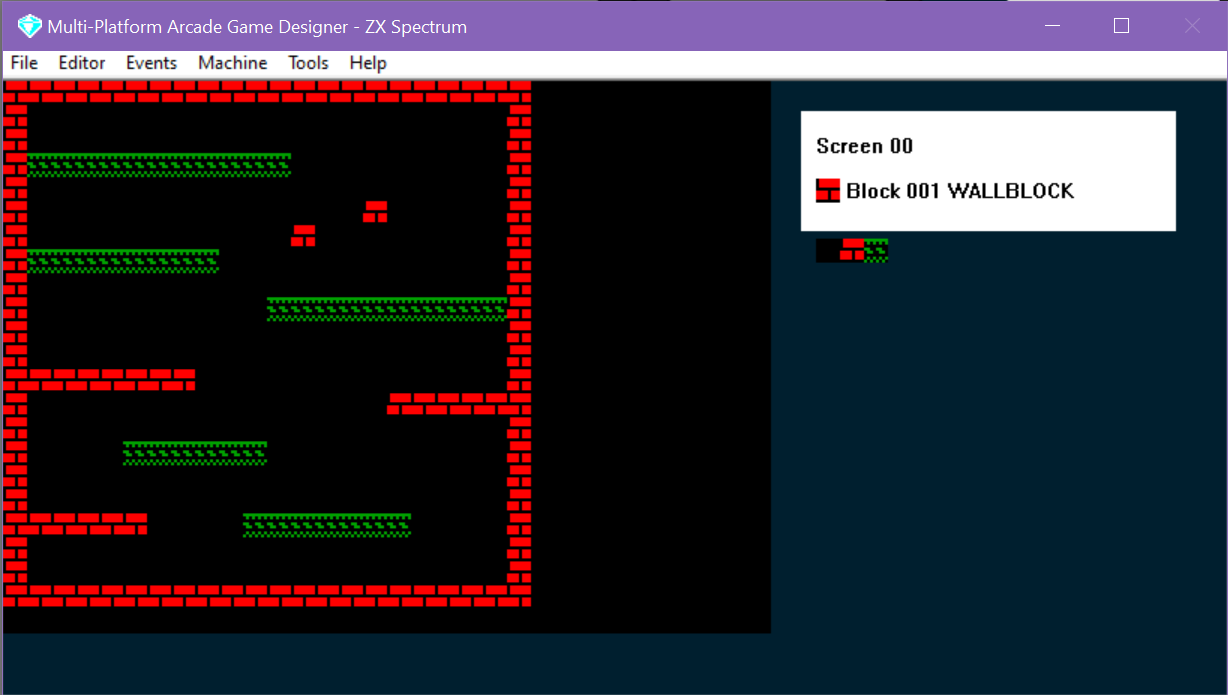
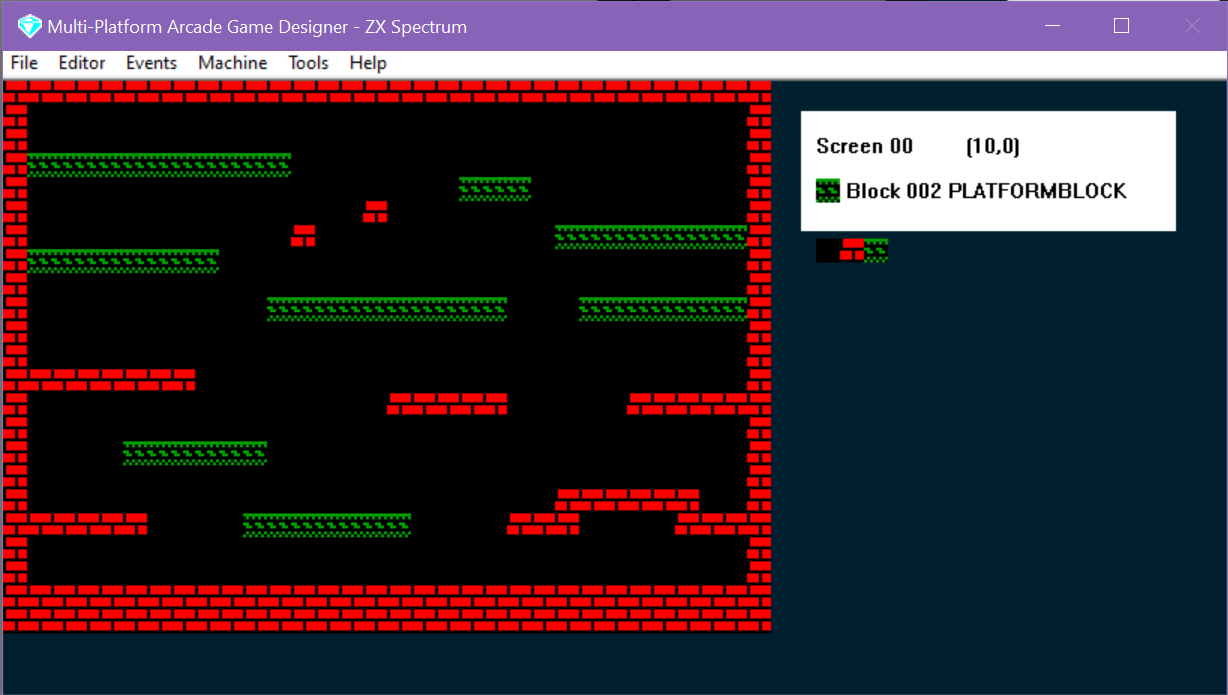
So let's edit our screen to use the additional space:
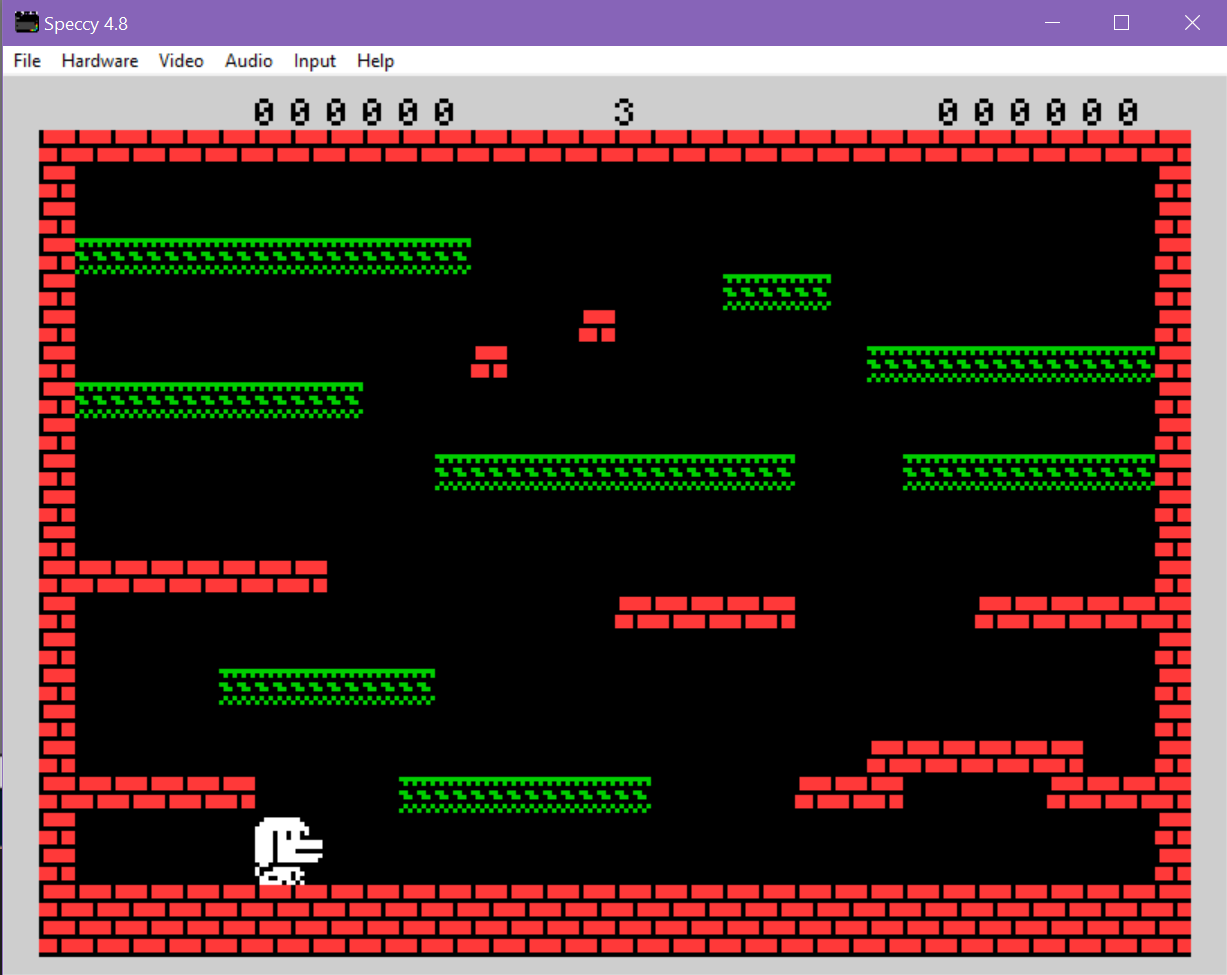
Build your game again and check everything's where you expect it to be:
If everything looks good...I think it's time to give the Dog an enemy to contend with.