
Back in Part 11 we introduced collectible items in our game, in our example - Bones that Stinky Dog needs to collect in order to progress. But there is another type of item that you can use in your game, and they offer a great deal more flexibility than collectables.
The problem with COLLECTABLE BLOCKS is that they are all treated the same - you collect them by placing a GETBLOCKS statement in your player event - this tests to see if the player is currently touching a collectible block and if so, remove it from the screen and run the COLLECT BLOCKS event.
And therein lies a problem.
MPAGD doesn't know which specific BLOCK you have collected - so if you have different types of collectibles, perhaps you want them to have different scores, bonuses or provide upgrades to the player - you can't easily achieve it with COLLECTABLE BLOCKS.
OBJECTs, on the other hand, are a bit different. These are items that you can design as 16 x 16px images (blocks are 8 x8 on the Speccy). Each object has a 'held' state - i.e. where is the OBJECT currently? This can be either:
CARRYING : The player currently has the object in his inventory
On a specific SCREEN at a specific X Y location
HIDDEN : Neither on a screen nor carried by the player
Further, each OBJECT has a specific identifying number which we can use in our code to:
PUT the object in a specific location on the current screen
GET the object so that it becomes part of the players inventory
Test IF GOT or WHILE GOT to see if the player has the specific object and, if so, run some code.
REMOVEOBJ to remove an object
So, as you can see OBJECTs are really quite useful. Both OBJECTS and COLLECTIBLE BLOCKS have their pro's and cons, and you'll need to consider these when deciding when to use OBJECTS and when to use COLLECTIBLE BLOCKS.
Some of the PROs of OBJECTs include:
16x16px images allowing for more interesting graphics
More flexibility in coding
Allows the use of the players inventory (INV)
When an OBJECT is picked up by a player it remains in their inventory until we REMOVEOBJ
Some of the CONS of OBJECTs include:
Each object uses more memory than a COLLECTABLE BLOCK
If you want multiples of the OBJECT you will need to create multiple versions of the OBJECT
As for COLLECTABLE BLOCKS some of the PROs include:
They are lightweight, use little memory
You can have multiple collectables on each screen while only using up 1 block
The CONs of COLLECTABLE BLOCKS
They redraw on the screen after they have been collected if you re-enter a screen or if you use the REDRAW command, or MENU
You cannot (easily) discern which block has been collected.
In the main, the only use I can really see for COLLECTABLE BLOCKS is in Manic Miner type games where you need to collect all the items in order to progress to the next screen, if you are writing an arcade adventure game, then OBJECTS are likely the best way to go.
In my games, I find objects useful for things like:
Rewards
Power ups
Bonuses
Loot crates
They also can be used as flags when you have run out of variables in certain circumstances, dependent on your game type, but that's a bit more of an advanced topic that I will cover another day1.
For now, let's create an object for our game. From the Editor menu select OBJECTS:
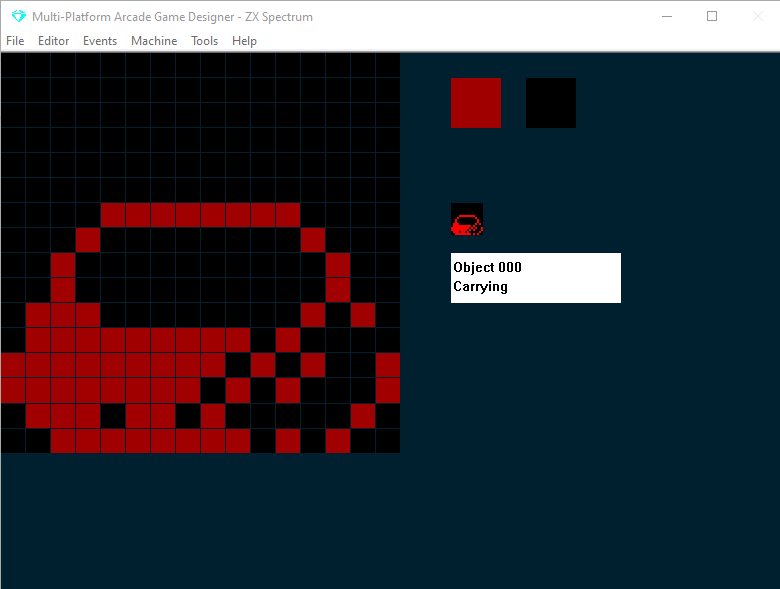
I've created a dog food bowl. You'll note that the editor is very similar to the SPRITE EDITOR - but there are a few differences:
First, we can set the colour of the object (on the Speccy, just the foreground colour) by clicking the colour box at the top right...I've cycled it to red
Second, note the white box on the right side - this tells us:
The OBJECT number (0)
The current location of the OBJECT
Press your cursor up or down to select your required option, the default is CARRYING - this means that it's in the player's inventory.
The next option is HIDDEN - this means that it is not in the players inventory and not on a specific screen
Press the cursor up again and it will change to ROOM 000 (i.e. SCREEN 0 )
Let's select ROOM 000, then to place it on screen press the P key:
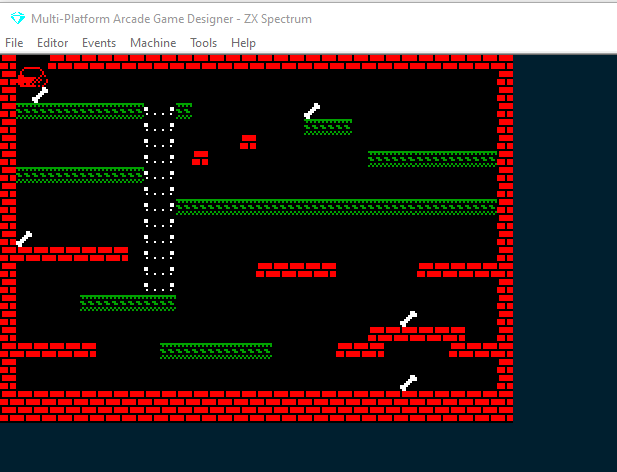
This will jump you to SCREEN 0 and place the OBJECT in the top right corner
We don't want it there, so we just click on screen where we want the object to be placed:
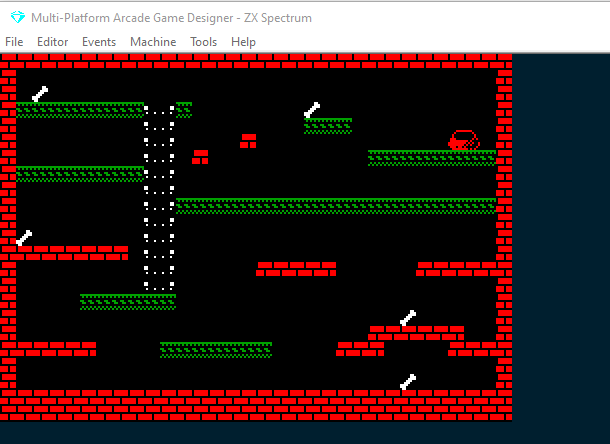
Having done that, let's go back to the OBJECT editor (Editor > Objects) and create some more:
To create a new Object press the X key,
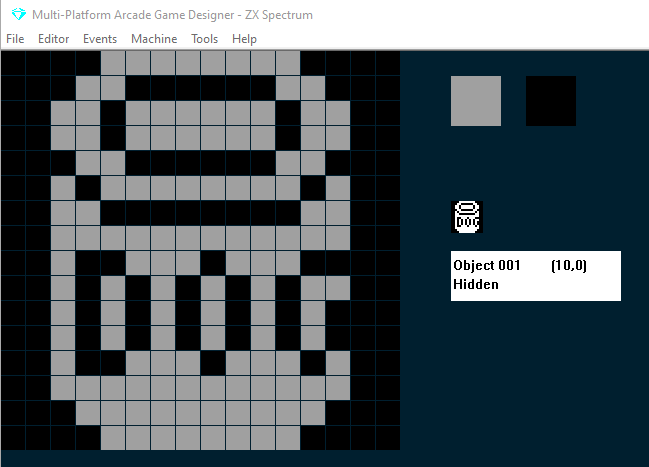
I've create a can of Dog Food object, but this time I've set it to 'Hidden', I might use this as a bonus item drop later...we'll see.
OK so having created some objects we're going to need to put some code into the PLAYER EVENT that will manage what happens when the player touches an OBJECT.
DETECTOBJ           ; is sprite touching an object?
IF OBJ <> 255       ; did we detect an object?
    GET OBJ         ; automatically pick it up.
ENDIF
The DETECTOBJ command checks if the player is touching an OBJECT, if it is, it will store the OBJECTs number in the variable OBJ, if it isn't touch an object the value of OBJ is set to 255.
That's why we test if the value of OBJ is NOT 255 ( the <> means IS NOT )
and if it isn't 255, we must be touching an OBJECT, so we GET OBJ - meaning we get the OBJECT whose number is currently stored in the variable OBJ.
Let's test that, but first we will write a little extra code that will put a message on the screen that tells us we've picked up the DOG BOWL.
DETECTOBJ           ; is sprite touching an object?
IF OBJ <> 255       ; did we detect an object?
    GET OBJ         ; automatically pick it up.
    IF OBJ = 0      ; is it the Dog Bowl
      AT 10 4       ; at line 10 column 4
      COLOUR 13     ; green ink on blue paper
      PRINT "you got the dog food bowl!"   ; display a message
      DELAY 50      ; wait a couple of seconds
      WAITKEY       ; then wait for a key press
      REDRAW        ; redraw the screen & remove the message
    ENDIF
ENDIF
This is what should happen:
Did you see that after we put a message on screen to say we'd collected the dog food bowl that we had to use the REDRAW command to remove the message - and in doing so all the COLLECTIBLE bones we'd picked up are replaced on the screen.
When you're getting started it's important to understand the difference between COLLECTIBLE blocks and OBJECTs and how the two don't always play nicely together.
We'll look at OBJECTs again later on in this series as our game develops.